
Install ComfyUI
ComfyUI runs Lumibelle’s local text generation, reference images, image editing and video takes on your own graphics card. Lumibelle connects to it over HTTP, so it can run on the same computer or another machine you control. You only need it for local generation: writing, asset editing and cutting work without it, and hosted text models are covered in AI setup.
Choose one way to run it:
- Windows portable: the official standalone build. Extract and run, no installation.
- Docker: a prebuilt image with ComfyUI and its dependencies. Updating means pulling a new image, so an update cannot break an existing installation. Suits Linux, Windows with Docker Desktop, and cloud GPU providers.
Both need a current NVIDIA driver. Either way, you then add two node packs, download the text and image models and video models, and connect Lumibelle.
Windows portable
- Download
ComfyUI_windows_portable_nvidia.7zfrom the latest ComfyUI release. It supports NVIDIA 20 series and later; for older cards useComfyUI_windows_portable_nvidia_cu126.7zfrom the same release. - Extract it with 7-Zip, or with File Explorer on a recent Windows version, to a drive with plenty of free space.
- Run
run_nvidia_gpu.batin the extractedComfyUI_windows_portablefolder. ComfyUI opens at http://127.0.0.1:8188. Keep the console window open while you use Lumibelle.
If ComfyUI does not start, update your NVIDIA driver. A c10.dll error means the Visual C++ Redistributable is missing.
In this build, models go in ComfyUI_windows_portable\ComfyUI\models and node packs in ComfyUI_windows_portable\ComfyUI\custom_nodes. To update ComfyUI later, close it and run update\update_comfyui.bat.
Docker
The comfyui-docker images package ComfyUI with its Python dependencies and are rebuilt when ComfyUI releases. Use comfyui-extensions, which adds ComfyUI-Manager and installs the requirements of your node packs each time the container starts.
You need Docker with GPU support: Docker Desktop on Windows, or Docker Engine with the NVIDIA Container Toolkit on Linux.
Create a folder for ComfyUI, save this as compose.yaml in it, and run docker compose up -d there:
services: comfyui: image: ghcr.io/radiatingreverberations/comfyui-extensions:latest container_name: comfyui ports: - "127.0.0.1:8188:8188" volumes: - ./models:/comfyui/models - ./custom_nodes:/comfyui/custom_nodes - ./user:/comfyui/user - ./input:/comfyui/input - ./output:/comfyui/output deploy: resources: reservations: devices: - driver: nvidia count: all capabilities: [gpu] restart: unless-stoppedComfyUI opens at http://127.0.0.1:8188. The mounted folders keep your models, node packs and settings when the container is replaced; without them, everything is lost on update. The 127.0.0.1 port binding keeps ComfyUI reachable only from this computer. To run it on another machine, see the image’s notes on SSH tunnels rather than exposing the port.
Models go in models and node packs in custom_nodes beside compose.yaml. To update ComfyUI, run docker compose pull, then docker compose up -d. Update the image rather than updating ComfyUI from inside it.
On Windows, Docker runs in a WSL2 virtual machine, and models load slowly from Windows drives. Keep the ComfyUI folder on the Linux file system, for example under \\wsl$\Ubuntu\home\<you>, if loading is slow.
Node packs
Image editing needs two node packs. Reference images and text generation work without them.
- comfyui-krea2edit (Krea 2 Identity Edit)
- comfyui-tooling-nodes
With Git, run these in the custom_nodes folder:
git clone https://github.com/lbouaraba/comfyui-krea2editgit clone https://github.com/Acly/comfyui-tooling-nodesWithout Git, choose Code → Download ZIP on each GitHub page and extract it so that its folder sits directly inside custom_nodes. With the Docker image you can instead search for both in ComfyUI-Manager and install them there.
Neither pack needs extra Python packages. Restart ComfyUI afterwards: close and rerun run_nvidia_gpu.bat, or run docker compose restart. Update a pack with git pull in its folder, or by downloading it again.
Text and image models
Download these files into the listed folders under models. Together they take about 30 GB. Subfolders are allowed. These are the files Lumibelle selects by default; other variants, such as krea2_turbo_fp8_scaled.safetensors, can be chosen in AI settings.
| File | Folder | Used for |
|---|---|---|
gemma4_e4b_it_fp8_scaled.safetensors | text_encoders | Text generation |
krea2_turbo_int8_convrot.safetensors | diffusion_models | Reference images and editing |
qwen3vl_4b_fp8_scaled.safetensors | text_encoders | Reference images and editing |
qwen_image_vae.safetensors | vae | Reference images and editing |
krea2_identity_edit_v1_2.safetensors | loras | Editing |
Choose the download button on each Hugging Face page. You can start with only the files for the features you want; Lumibelle disables what is missing and leaves the rest working. FLUX.2 Klein 9B KV is an alternative image workflow with its own files.
Video models
Shots generates takes with MiniMax H3 Ref2VA, which runs on nodes built into current ComfyUI, so no node pack is needed. It needs four files, about 40 GB in total:
These are the files ComfyUI’s own Ref2VA template uses. The model is MiniMax’s own Ref2VA weights, as packaged by Comfy-Org, and several acceleration adapters were trained on it. MiniMax released two H3 checkpoints: FL2VA, which starts from a first or last frame, and Ref2VA, the only one that takes reference images. Community models merge the two, keeping Ref2VA’s reference inputs while taking other weights from FL2VA. Lumibelle hasn’t compared these models systematically, so try more than one with your own references. The encoder’s NVFP4 format is a 4-bit format meant for NVIDIA RTX 50 series cards. Alternatives are Comfy-Org’s 8-bit qwen3vl_32b_minimax_h3_int8_convrot.safetensors (about 27 GB) and koongrizzly’s qwen3vl_32b_minimax_h3-w4a8_convrot.safetensors (about 16 GB). For the video VAE, Comfy-Org’s larger minimax_h3_video_vae_fp16.safetensors (about 5 GB) also works.
Lumibelle also suggests these alternative models. Hovering a model’s size on the settings page estimates which common card holds it fully; smaller cards still work, more slowly, because ComfyUI streams the rest from system memory.
minimax_h3_ref2va_pruned_w6a8.safetensors(about 16 GB), from Comfy-Org: the same official weights in a smaller format.minimax_h3_ref2va_pruned_w4a8_mixed.safetensors(about 12 GB): the official weights smaller still, from Kijai’s repository of experiments, so it may change or disappear.Minimax-h3_Singularity_ref2va_Pruned_v1.3_int8.safetensors(about 21 GB): Singularity v1.3, a community finetune of such a merge. Its author tuned it for clarity, faces, action scenes and camera control.Minimax-h3_Singularity_ref2va_v1.3_Pruned_w4a8.safetensors(about 12 GB), from the same repository: Singularity at about half the size.minimax_h3_hybrid_fl2va_ref2va_b25-49-int8.safetensors(21 GB): a plain merge of the official weights, without further training. The same repository hasb20-49andb15-49, which follow references more closely at some cost in quality, andb30-49, which leans the other way.
To check your setup, open AI settings → Video models. Lumibelle checks ComfyUI when the page opens and shows each file as Installed, Missing or Other file, with the folder it belongs in and where to download it. The files from ComfyUI’s template are the defaults. To use another installed file, such as one you renamed, choose it from the list on its row. Lumibelle can’t tell from a file name whether it’s compatible. Choose Save video models when you’re done.
Presets
Each preset in the Shots preset picker lists what it needs beyond the four files above, and shows Ready once it’s all there. Standard, Beta and Euler beta need nothing more.
| Preset | Needs | Folder |
|---|---|---|
| Turbo · 4 steps | minimax_h3_ref2v_turbo_4step_v0.1_comfyui_bf16.safetensors, which the Singularity author recommends. Use the ref2v file; the fl2v LoRAs beside it belong to a different workflow. | models/loras |
| Larry · 6 steps | The ComfyUI-MiniMax-H3-Turbo node pack, tested at 4274783, with its bundled support files | custom_nodes |
minimax_h3_turbo_v4_step600_ema.safetensors | models/loras | |
| PDD · 8 steps | The ComfyUI-MiniMax-H3-PDD-Acc node pack, tested at 311a65d | custom_nodes |
MiniMax-H3-Ref2VA-Acc-8Step.safetensors | models/pdd_acc | |
| 10Eros Compact · 8 steps | 10Eros_Max_h3_8stepTURBO_beta7_activation_learned_compact_w4w6int8_14.65gb.safetensors, complete checkpoint; separate model selection, embedded Turbo, native ComfyUI quantization and companion attention recipe. File size is not required VRAM. | models/diffusion_models |
| SMD Ref2VA - 4 steps | Official pruned INT8 base listed above, plus SMD-MiniMax-H3-Ref2VA-4step.safetensors, strength 1, Euler, BasicGuider and published fixed sigmas. Separate base and adapter selections; no other acceleration adapters. | models/diffusion_models and models/loras |
| Pika H3 Flex - 6 steps | Official pruned INT8 base listed above, plus pika_h3_flex_ref2va_v1_bf16.safetensors, as in ComfyUI’s Pika H3 Flex Ref2VA template: strength 1, lcm, BasicGuider and the template’s six fixed sigmas. Use the ref2va file; the fl2va LoRA belongs to the text-to-video and first/last-frame templates. Separate base and adapter selections; don’t stack a Turbo or Lightning LoRA. | models/diffusion_models and models/loras |
| FastH3 Omni - 8 steps | fasth3_omniref_8step_pruned_int8_convrot.safetensors. A complete OmniRef checkpoint, Euler/simple, shifts 12/3, native VSA 10% and Comfy Kitchen attention. | models/diffusion_models |
| PTD + RefAsymOPD - 6 steps | Official pruned INT8 Ref2VA base listed above, plus ptd_h3_ref2va_refasymopd_6step_int8.safetensors. Its six-hop clock comes from the adapter, using its dedicated PTD sampler. | models/diffusion_models and models/ptd |
| ComfyUI-PTD-Compact, which includes its runtime. The recipe selects exact reference kernels and follows the upstream sampler’s allocation-compiler policy. | custom_nodes |
After installing a node pack, restart ComfyUI, then choose Check again in Video models.
Spectrum, LightX2V 8-step, the 0.75-strength variant and standalone HyperFlow are removed. Editable setups reset to Standard with a notice; saved takes and historical receipts retain their original settings. Use motion-reference promotion for a fresh Standard final from a fast draft. Baked accelerated checkpoints cannot use Standard partial-denoise refinement.
Lumibelle requires no custom nodes of its own. Requests save generation settings, prepared inputs and submitted graphs using native and upstream node packs.
Optional add-ons
The latent upscaler is used by Upscaled preview in the Shots resolution picker, which samples at a smaller size and upscales the result to full size in the same job, and by refining a take at a larger size. It needs one latent upscaler node pack, either Comfyui_Minimax_h3_latent_Upscaler-Plus (tested at db76324) or the original Comfyui_Minimax_h3_latent_Upscaler (tested at d7c01b9). Install only one: they register the same node. It also needs minimax_h3_latent_upscaler_3d_conv_v1_fp16.safetensors in models/latent_upscale_models.
SageAttention, chosen under Attention, needs the ComfyUI-KJNodes node pack and the sageattention package in ComfyUI’s Python environment. The other attention choices use nodes built into ComfyUI.
Starting from a frame
A shot that starts from a take frame anchors that frame with ComfyUI’s built-in MiniMaxH3AddGuide node, so it needs no extra files or node packs. If Generate takes asks you to update ComfyUI for it, update to a current ComfyUI and refresh video models.
Connect Lumibelle
With ComfyUI running, open AI settings → Connections in Lumibelle, enter http://127.0.0.1:8188, check the connection and save.
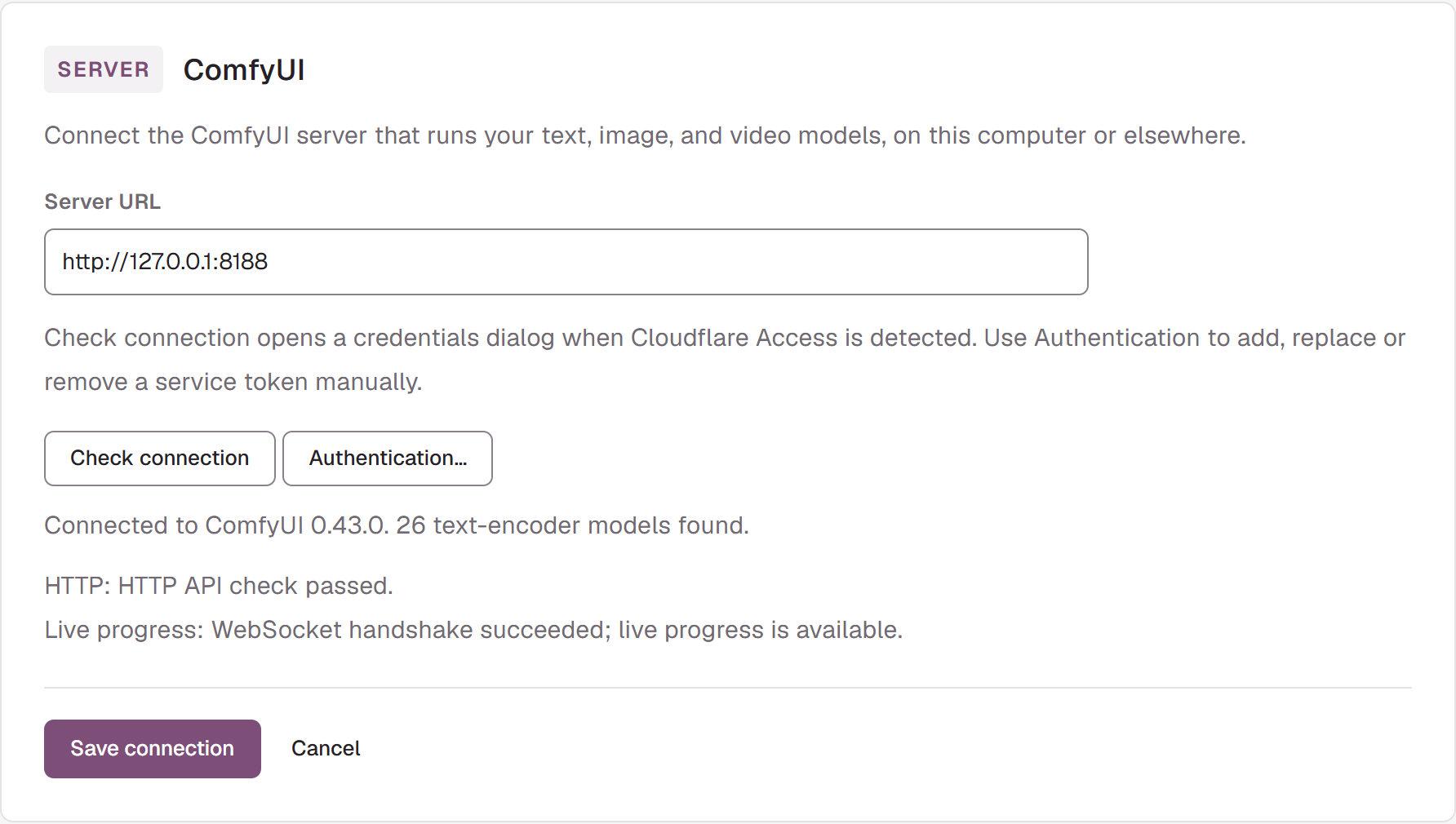
Then test a text model and select the image files as described in AI setup, and the video files as described above.
Lumibelle never installs nodes or downloads models for you. When a feature reports a missing node or file, add it here and refresh in AI settings.
Example footage in this manual comes from a short film of "The Open Window", Saki's 1914 story, which is in the public domain.